




Here's something a lot of AutoCAD® users don't realize: if you own AutoCAD, you already own AutoCAD Electrical. It's there right now, ready to use whenever you are.
In our recent webcast, Automate Your Schematics with AutoCAD Electrical, a Hagerman applications expert walked through what the toolset does that standard AutoCAD simply can't. The short version: it takes the manual busywork out of controls design, from cross-referencing to wire numbers to bills of material. Here are the highlights.
It's Still AutoCAD, Just Smarter
AutoCAD Electrical is a true Autodesk product, not a third-party add-on bolted onto AutoCAD. Every drawing you create is a native DWG that opens in standard AutoCAD, AutoCAD Mechanical, AutoCAD Architecture, or any DWG viewer. When a customer asks for native files, you can deliver them with confidence.
Your AutoCAD skills carry over, too. You still work with layers, blocks, and standard draw commands. Every symbol is an AutoCAD block with attributes. What makes it intelligent is a consistent naming convention and a specific set of attributes the software reads and manages for you.
The biggest adjustment for longtime AutoCAD users? Switching to the electrical commands. Instead of Copy, Move, and Delete, you'll use Copy Component, Move Component, and Delete Component so the intelligence travels with your work.
Think in Projects, Not Single Drawings
In standard AutoCAD, each DWG stands alone. Nothing links one drawing to another. AutoCAD Electrical flips that with the Project Manager, where you create a project, organize it into subfolders, and open or create every drawing from one place.
Even a 20- or 30-page project benefits from that structure. And because every drawing belongs to the same project, the software can keep information consistent across all of them.
Drafting Features You Won't Want to Give Up
Some of the biggest time savers look small until you go back to working without them:
- Drop in a wire and the tie points appear automatically. No separate blocks required.
- Insert a symbol on a wire and the wire breaks at the connection points for you.
- Draw as many parallel wires as you need at once with the multiple bus command.
- Switch wire types on the fly. Wire types are dedicated layers you can build into a template once and reuse.
- Build templates with reference numbers, wires, and even symbols already in place, so a new drawing can start half-finished.
Symbol Libraries and a Massive Catalog Database
Standard symbols for push buttons, relay coils, selector switches and terminals come out of the box, along with libraries for pneumatic, hydraulic, P&ID, IEC and IEEE symbols. You can still create your own custom symbols when you need them.
The included catalog database has more than 800,000 entries covering major manufacturers like Allen-Bradley, Square D, Eaton and Siemens. Assign a catalog number and it can fill in details for you, like pin numbers or a breaker's amp rating. That means one symbol can serve multiple manufacturers, with the catalog number driving the specifics. You can add your own entries, and the catalog and footprint databases can be migrated from Microsoft Access to SQL.
Location and installation codes add another layer of organization. Tag components by enclosure, operator station, junction box or field device, then run reports or project-wide utilities for just one location. Farming out an operator station to a panel shop? Hand them the bill of material for that station only.
Cross-Referencing That Keeps Itself Current
In standard AutoCAD, cross-referencing is a completely manual process. In AutoCAD Electrical, parent-child relationships handle it automatically.
Take a relay. The coil is the parent and its contacts are children. Link a contact to its coil, whether it's on the same drawing or a different one, and both sides cross-reference each other instantly. Make a change later and the references update on their own.
It also catches mistakes. If your relay's catalog number only supports two contacts and you try to add a third, the software flags it before it turns into a problem on the shop floor.
Those same relationships extend beyond schematics. You can link a prox switch or solenoid on your PLC drawing to its counterpart on a pneumatic, hydraulic or P&ID diagram, making it easier for field crews to see exactly what's advancing and retracting.
Wire Numbers in Seconds
Number a single wire, an entire drawing or a whole project in one step. Wire numbers are tied to the wires themselves, not loose text sitting next to them. Choose the format that matches your standard, whether that's reference-based, sequential, or tied to sheet numbers, drawing numbers or wire layers.
Run out of room on a sheet? Source and destination arrows carry a wire to the next drawing and keep track of where it came from and where it's going.
Schematics and Panel Layouts Stay in Sync
Every schematic component eventually needs a panel footprint. As you build schematics, AutoCAD Electrical creates a running list of components you can pull from when laying out the panel, and all the information you entered carries over.
Here's where it gets impressive. During the webcast, the presenter switched a relay's catalog number from Allen-Bradley to Square D. The pin numbers updated immediately, the software flagged the children for updating, and the footprint in the panel drawing was swapped for the correct Square D footprint automatically.
And if your workflow starts with the panel instead of the schematic, that works too.
Why this matters
In standard AutoCAD, a single catalog change can mean hunting down every affected tag, pin number, cross-reference and panel footprint by hand. In AutoCAD Electrical, one edit ripples through the project for you.
Build It Once, Reuse It for Life
Circuits are all about reusing data. Copy a circuit and the component tags update automatically. Better yet, save a common circuit, like a three-phase motor starter, to an icon menu or a folder and insert it like a symbol whenever you need it.
Point your environment file to a shared network folder and the whole team can pull from the same circuit library. As the presenter put it, once you build it, you own it for life.
PLC Modules Without the Retyping
Parametric PLC modules from a wide range of manufacturers let you choose an addressing scheme, add spacers for extra room between I/O points and break a module across drawings when it won't fit on one sheet.
Descriptions don't have to be typed twice. Import them from your PLC program if it came first, or export your I/O descriptions from AutoCAD Electrical into your PLC software if the drawings came first.
Reports Standard AutoCAD Can't Touch
Standard AutoCAD has no reporting capability. AutoCAD Electrical includes schematic and panel reports you can run for a whole project or a single location, including:
Customizing a report takes a few clicks. Add, remove or reorder fields, like an internal company part number or sheet number, then place the report on a drawing as an AutoCAD table or save it as an Excel spreadsheet, Access database, XML file, CSV or ASCII text file for purchasing, the shop or engineering.
- Bills of material
- Wire from-to reports between specific locations
- PLC I/O addresses and descriptions
- Wire labels ready for your label printer
- Nameplates ready for your engraving machine or vendor
- Terminal strips with accurate terminal numbers, quantities, spares and accessories
Real-world win
One company bought AutoCAD Electrical just for wire labels. They'd been spending hours, days and even weeks creating them by hand. Now it's one report, saved to a file their label printer accepts.
Update Every Title Block at Once
Fifty pages into a project and the part number changes? In standard AutoCAD, that means opening every drawing, editing the title block, saving, and repeating. In AutoCAD Electrical, update the project description once, run a project-wide title block update, and every drawing changes in the background.
Making the Move from AutoCAD
Switching isn't effortless, but your AutoCAD background gives you a real head start. That's why Hagerman's AutoCAD Electrical Fundamentals class asks for AutoCAD experience up front. From there, we teach you how to build custom symbols, add catalog entries, set up templates, and put these automation tools to work on your projects.
Not sure where your team should start? A Hagerman advisor can help you map out the right training path and get more from the software you already own.
Watch the Full Recording
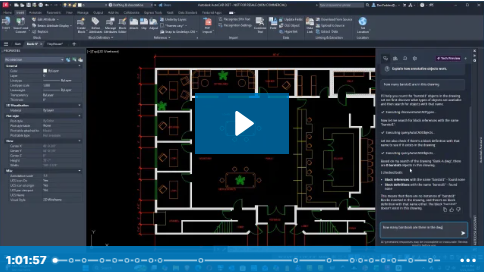
This recap only scratches the surface. Watch the full recording of Automate Your Schematics with AutoCAD Electrical to see every feature demonstrated live, from parent-child cross-referencing to one-click reports.



Comments