


New to AutoCAD Electrical? This webinar is a full walkthrough of what you get when you purchase AutoCAD and use AutoCAD Electrical. Our solutions engineer build schematic and panel drawings, tracks components between drawings, number wires automatically, and pulls reports from the project data.
How do intelligent symbols work?
Symbols come in several libraries out of the box: push buttons, proximity switches, relay coils, fuses and circuit breakers, plus IEC, P&ID, pneumatic and hydraulic libraries. They are AutoCAD blocks with attributes. The symbol naming convention and the attributes make them intelligent, and you can convert your own existing blocks into intelligent symbols.
How do components, catalog numbers and the parts database work?
When you insert a component, the tag fills in automatically. You can add up to three lines of description, typed or picked from a list of common phrases, and attach a catalog number so the part appears on your bill of material at any point in the project. The parts database (Access or SQL) holds hundreds of thousands of entries, and you can add records without leaving the software. Installation and location codes let you run a report on one enclosure instead of the whole project.
How do parent and child symbols keep drawings in sync?
A relay coil is the parent, and its contacts are children, even on other drawings. Anything filled in on the parent carries over to the children, and cross-references update on both sides. The software also checks your work: if a catalog number says a relay has two contacts and you try to assign a third, it warns you at the design stage, not in the field.
How does automatic wire numbering work?
You can number a whole project, one drawing, or individual wires. The wire numbers follow the same reference-number format as the component tags. When a wire stops on one drawing and continues on another, the software tracks both ends, so you don’t keep track of it by hand.
How do panel layouts connect to schematics?
Footprint symbols are the full-scale graphical representation of each component in the panel. You can insert them from a list of every component in your schematics. The footprint links to its schematic symbol, so a change to one updates the other. If you swap a catalog number to a different manufacturer, the footprint swaps too.
How do you reuse circuits?
Copy a circuit and the tags update automatically. Wire numbers reset on a copy, so you run the wire numbering command again. You can also save circuits to an icon menu or as a drawing file and insert them later, and build them into a drawing template so new drawings start partly finished.
How does it handle PLC I/O?
You can insert PLC modules two ways. A parametric module lets you add spaces or break the module across drawings, and a full-unit module is more detailed but can’t be broken. Addressing fills in from the first address, with up to five lines of description per point. If you wrote the PLC program first, you can import its descriptions from a text file. If you drew first, you can save a PLC I/O description report to pass to the PLC program.
What about terminal strips, connectors and cables?
The terminal strip editor supports multi-level terminals, spares and accessories that count on the bill of material, and wiring information shown in a table for the people in the field. Connectors and cable markers work like the other symbols, and a catalog number can bring in the cable’s color code. A cable from-to report can be handed to anyone who has to wire it.
What reports can you get?
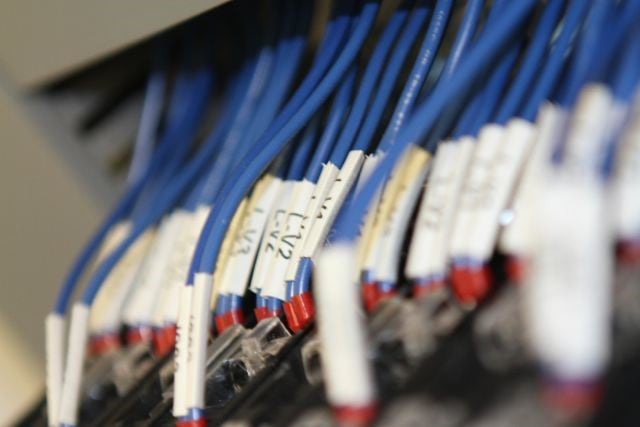
Any data in your project can be reported. The webinar covers bill of material, point-to-point wire, PLC I/O and wire label reports, and every report’s fields and order can be changed. Reports export to Excel, XML, comma-separated and other formats, or go back onto a drawing as a table. You can run a report on one location, such as a panel being built by an outside shop, and wire label reports can go to a label printer.
Does it replace Sheet Set Manager?
Yes. A title block update command changes every title block across the project at once, in the background.
Get AutoCAD Electrical Training From Hagerman
|
|


Comments