




Cross-functionality between AutoCAD Plant 3D and AutoCAD P&ID adds intelligence and continuity to the design process, enabling the drawings to interact with one another from P&ID through Piping Isometrics. Straight out of the box however, there is great inconsistency with the pipe line numbers.
This article was originally released in 2013 and due to changes in the software it was revised in 2017. Now it is being revised once again due to changes in how Calculated Properties are created beginning with the 2023 version. In the first revision in 2017 there were some major changes which required that I show how to update your drawings from the 2013 method to the 2017 method for project validation to work without any errors. This information has been removed in the current article because it has been over 7 years, and everyone should be updated by this point in time. Those of you who have already implemented the Pipe Line numbering system like the 2017 article do not need to change anything because the new changes do not affect your current projects or setup. The new changes just use a different method for creating and modifying Calculated Properties with a whole new set of dialog boxes.
PLEASE NOTE: While you can apply these properties to an existing project, it will take additional work on your part to transfer existing drawings into this system. Therefore, results will vary on an existing project until all entities have been updated. For instructions on how to accomplish this in an existing project, see the article AutoCAD Plant 3D/P&ID: The Tag Rebuilder following those instructions after completing the instructions of this article. In order to get the best and easiest results from the settings in this article, it is recommended that this be done before you create the first drawing within a project. These settings will also transfer into a newly created project if they have been implemented in the Project that you select when you use “Copy settings from existing project.”
The images below show that when tagged, your line numbers are not the same in the P&ID, Model, Ortho and Isometric drawings:
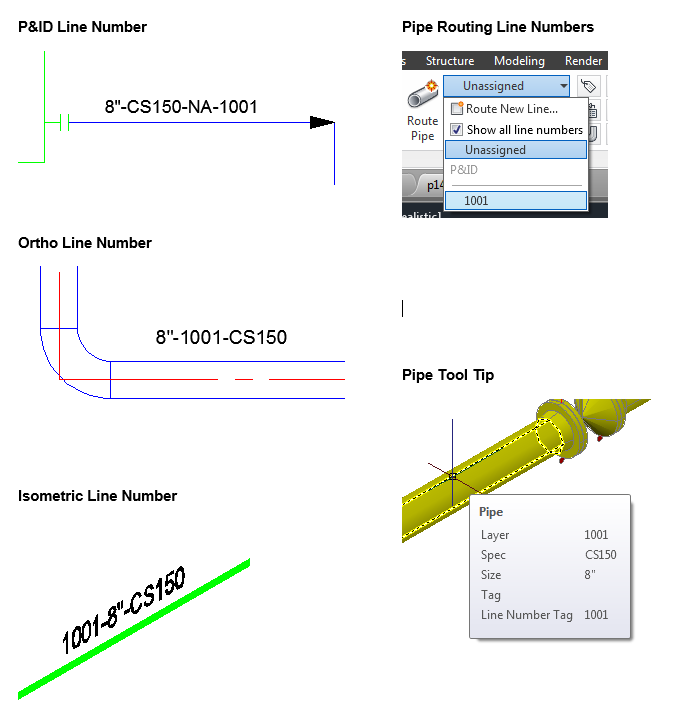
Today we will show you how to setup your project to have the Pipe Line Numbers appear exactly the same from P&ID to Iso. The one exception will be the Pipe Routing Line Numbers, which most would agree do not need to match every pipe size and spec, however it would be helpful to include the Service of the pipe run when routing pipe.
After you have created a new project in Plant 3D you are ready to proceed. We are going to make the out-of-the-box P&ID line number system our standard throughout this project, however you can make this conform to any system you might require. P&ID uses this system: Size-Spec-Service-Number.
SET UP THE TAG FORMAT IN P&ID AND PLANT 3D
Using whatever method you prefer, open the “Project Setup”.
First, we will set up the P&ID side in order for it to shake hands with the Plant side. In the Project Setup dialog box tree on the left, expand and select the following:
P&ID DWG Settings > P&ID Class Definitions > Pipe Line Group
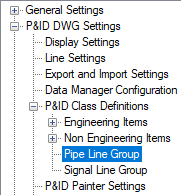
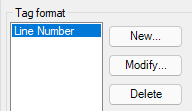
In the Main Window of the dialog box under Tag Format select Line Number then click on the Modify button.
In the Tag Format Setup set the Number of Subparts to “2”. Click the “Select Class Properties” (Orange Rectangle) button for each subpart and change the first one to TargetObject.Service and the second one to TargetObject.Line Number.
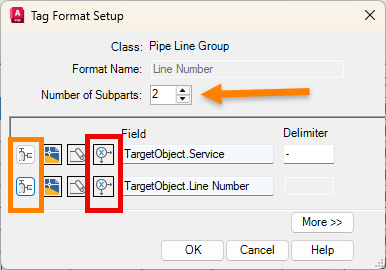
Then select the “Define Expression” (Red Rectangle) button for each subpart and set them to No expression (free style value).
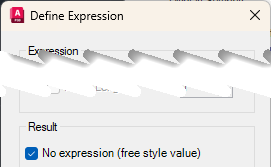
Click OK but do not exit the Project Setup. I recommend you click “Apply” in order to save your work and not lose anything by accident.
We are ready to set Plant 3D up to match. In the Project Setup dialog box tree on the left, expand and select the following:
Plant 3D DWG Settings > Plant 3D Class Definitions > P3D Line Group
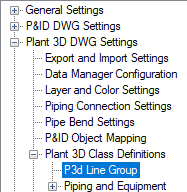
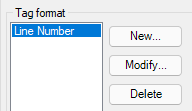
Just as before, In the Main Window of the dialog box under Tag Format select Line Number then click on the Modify button.
In the Tag Format Setup, set the Number of Subparts to “2”. Click the “Select Class Properties” (Orange Rectangle) button for each subpart and change the first one to TargetObject.Service and the second one to TargetObject.Number.
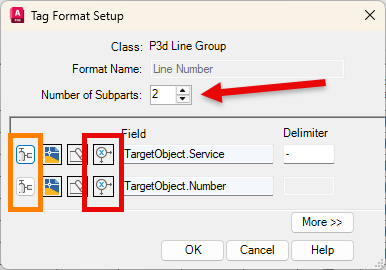
Then select the “Define Expression” (Red Rectangle) button for each subpart and set them to No expression (free style value).
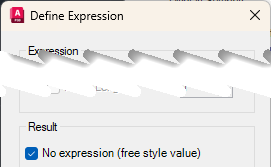
This accomplishes a couple of things. It will allow the Service to be included in the Pipe Routing Line Numbers drop down as well as the layer names, making the line numbers easier to maintain. It will also allow you to set the Service correctly while routing your pipe which will keep the Pipe Line Numbers that we use in P&ID, Orthos and Isometrics consistent.
Click OK and in the Project Setup click Apply.
CREATE A PIPE LINE NUMBER CALCULATED PROPERTY
We need to set up a Property to match the “Size-Spec-Service-Number” system of the P&ID’s by creating a Custom Calculated Property and then use that property in the Orthos and Isometrics. We will not be going into any detailed explanation of Calculated Properties. If you need a more detailed explanation, then please review the article in this link entitled “AutoCAD Plant 3D: Calculated Properties.”
Using the tree in the left hand pane, navigate to Pipe Run Component.
Plant 3D DWG Settings > Plant 3D Class Definitions > Piping and Equipment > Pipe Run Component
With Pipe Run Component selected, on the right side of the dialog box select Add. This will open the Add Property dialog box.
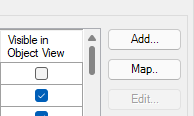
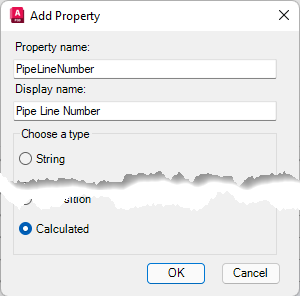
In the Add Property dialog box set the following:
Property Name: PipeLineNumber
Display Name: Pipe Line Number
Choose a type: Calculated
Then select OK.
Now we are in the Add Calculated Property dialog box.
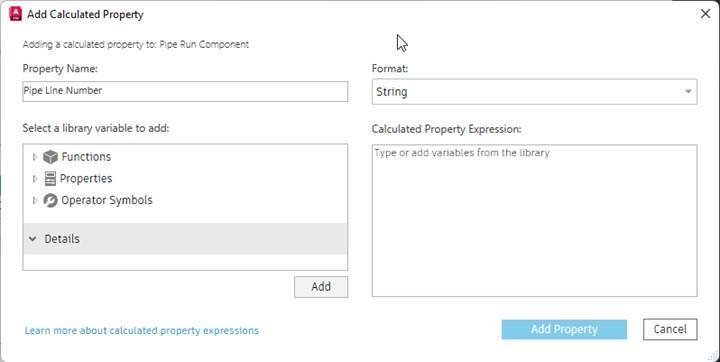
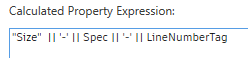
The “AutoCAD Plant 3D: Calculated Properties” link mentioned earlier shows you three different methods for adding the Calculated Property Expression. Using whatever method you choose, the PipeLineNumber Calculated Property Expression should look like this:
"Size" || '-' || Spec || '-' || LineNumberTag
To complete the process, in the bottom right select Add Property.
SIDE NOTE: If you ever have a project that requires a different Pipe Line Number format such as the order of the properties, adding insulation or any other change and the project was based on everything in this article you need to only make two modifications in your project:
P&ID: Pipe Line Segments Modify the Tag Format
Plant 3D: Pipe Run Component Modify the PipeLineNumber Calculated Expression
Everything in the drawing will automatically update, however you may need to use the command PlantRefreshAcqProperty on both the P&ID and Plant Drawings, Update Ortho Annotations, and Create new Isometrics, but at least you will not have to redraw your P&ID’s and Models.
CREATE AN ORTHO ANNOTATION STYLE
At this point, we are ready to create our Ortho Annotation Style. Confirm that you still have Pipe Run Component selected in the left-hand pane.
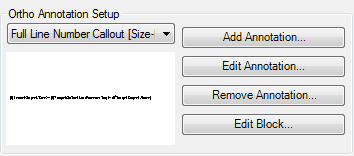
In the Main window under “Ortho Annotation Setup” in the drop down box select Full Line Number Callout [Size-Line Number Tag-Spec] as a starting point. Then select Add Annotation.
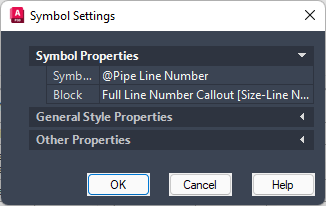
In the Symbol Settings dialog box set the Symbol Name to @Pipe Line Number then Click OK.
While the “@” symbol is not necessary it will cause this new Annotation to sort to the top of the list. Therefore, when you are placing Annotations in an Ortho, “@Pipe Line Number” will be the default option which is just one more nice little time saver.No need to change the Block name. A new block will automatically be created named “@Pipe Line Number_3dblock”
Now select the “Edit Block” button to open up the new annotation in the block editor. Select the “Assign Format” button and at the “Select attribute definition” prompt select the only attribute that is on your screen.
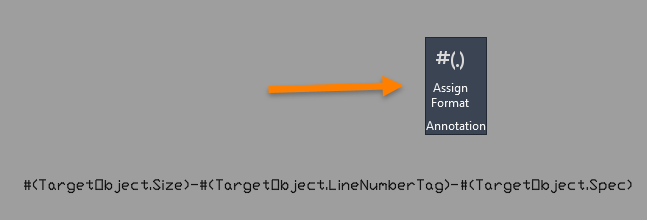
Change the Number of Subparts to 1 single subpart and using the “Select Class Properties” button confirm “Use Target Object’s Property” is active, select Pipe Run Component and set it to the TargetObject.Pipe Line Number that you just created. Click OK and then Close the Block Editor and SAVE the changes to “@Pipe Line Number_3dblock”. If you like you can go back to “Edit Annotation” to confirm that the Block Name is set correctly, but trust me – it is. More importantly, Click “Apply” to save your work.

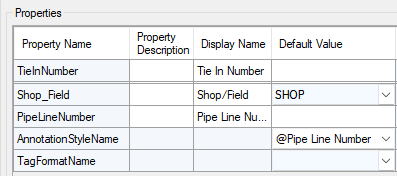
We have one last task in the Project Setup before we move on to a whole new ballgame with our Isometrics. In the Main window locate Annotation Style Name and set it to @Pipe Line Number. Once that is complete you may exit the Project Setup by clicking “OK”.
SET UP THE ISOMETRIC TAG
Out-of-the-box the Isometrics will only include three items: Line Number, Size and Spec. I can make it rearrange the sequence of these to a degree, but I can never make it put the Line Number between the Size and the Spec nor can I make it include the Service in the sequence at all. However, I can use the Pipe Line Number property we created earlier.
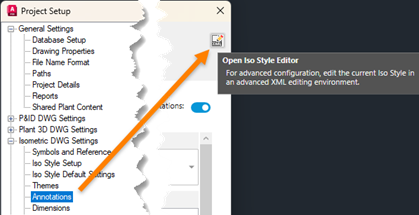
NOTE: There is a bug currently in the software that has something to do with the Iso Style Editor that was introduced as part of the Project Setup. Basically, if you ever select the Annotations section of the Isometric DWG Settings in the Project Setup for the modified Theme, and execute the Iso Style Editor, it will reset that Theme’s Line Number Format back to the out-of-the-box Format. For this reason, for this to work you must have all your settings finalized in the Isometric Theme before you set up the isometric tag as described in the rest of this document. Autodesk is aware of this issue and once this has been fixed in the software, I will remove this note from this article.
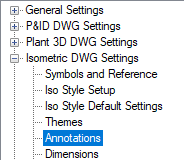
Using the tree in the left hand pane, navigate to Isometric DWG Settings Annotations.
Isometric DWG Settings > Annotations
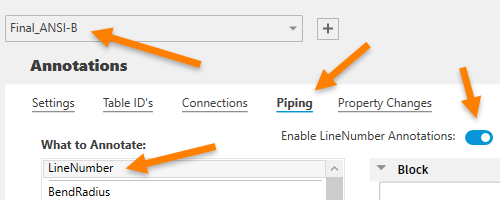
Select the Theme to modify. In my case I am modifying Final_ANSI-B. Then select Piping, confirm “Enable LineNumber Annotations” is activated and then under “What to Annotate” select LineNumber.
Under Attribute Text, expand PIPELINE-REFERENCE, then expand Size-PIPING-SPEC. Save this information for a bit later, but the PIPELINE-REFERENCE is the root of the Format {0} and is referring to the P3D Line Group Tag format that we set up earlier. This cannot be removed from the Line Number Scheme. The Size-PIPING SPEC is the ComponentFormat which makes up the second part of the Format {1} and this can be modified.
We will redefine the ComponentFormat. Delete Size and PIPING-SPEC.by selecting the “x” for each. Delete the dash as well (-) and then select the Add button.
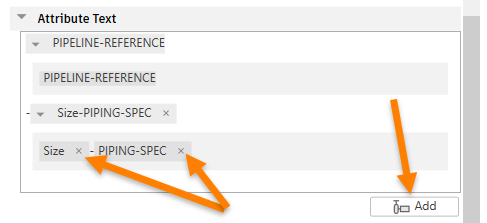
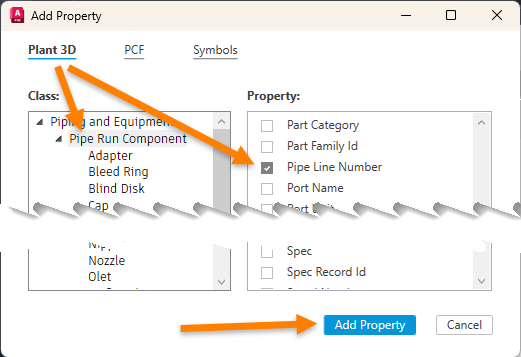
In the Add Property dialog box, select Pipe Run Component. For the Class, Pipe Line Number for the Property, and then select Add Property.
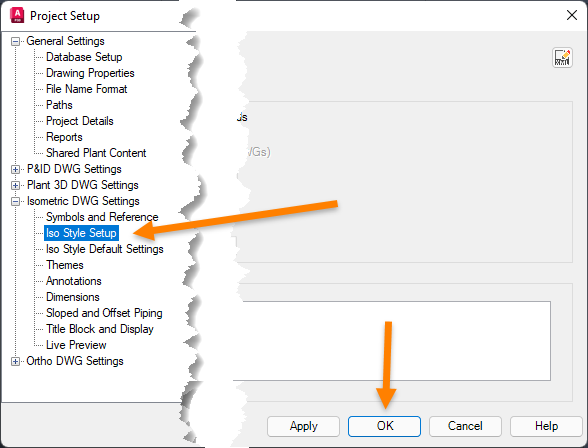
In the Project Setup dialog box, in the left-hand pane select anything else in the tree. Because of the aforementioned “bug” in the current version. just get off the Annotations before you exit Project Setup. Now select OK and exit Project Setup.
Now with Notepad, open the file IsoConfig.xml. Unless you have an XML Editor installed, double clicking this file will most likely open it in your browser, so if you do not have an XML Editor then right click and use Open With Notepad. This is a fairly large file, so I would suggest that you use your “Find” function by using CTRL-F and searching for PipeLineNumber.
The ComponentFormat is correct because we only have one component which is the PipeLineNumber. However, the Format is showing {0}-{1} which is now the LineNumberTag-ComponentFormat. The LineNumberTag is already a part of the PipeLineNumber, so we need to modify the Format to {1} which is just the ComponentFormat.
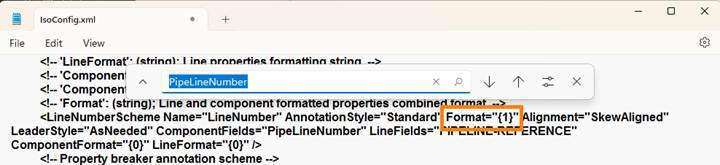
Before we exit this file, let’s make a backup of the LineNumberScheme by copying the entire line to your clipboard. Then right above it type <!-- <paste the line> -->. That way if you ever get bitten by the bug, you can just copy and paste the line and be on your way. So now it should look something like this:

Save and Exit the file.
CONCLUSION
Create and annotate a P&ID, route some piping in Plant 3D by line number, create and annotate an Ortho and an Iso of the line and the results should be as follows:
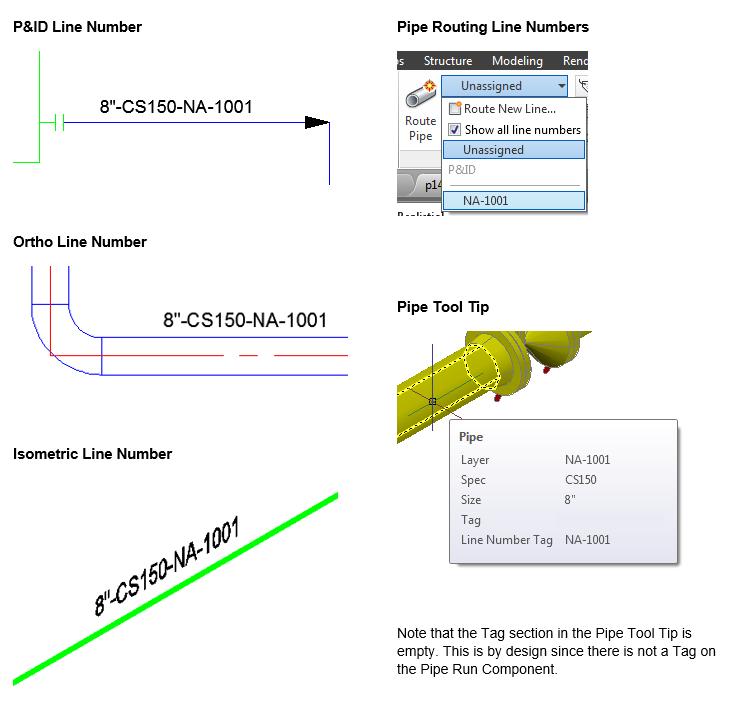
A couple of side notes and additional benefits. Note that the Pipe Routing Line Numbers on the Plant 3D Models now carry the Service with it making it easier to sort and manage. This should also translate over to your Layer names.
Also, when you are annotating your Ortho, your new @Pipe Line Number should have been the default annotation style so press ENTER and don’t stop for anything!




Comments