




AutoCAD® Plant 3D ships with a companion utility that many users either never notice or quickly set aside after a frustrating first attempt: the Report Creator. This webcast is dedicated entirely to that tool — showing what it can actually do, why the out-of-box experience undersells it, and how custom reports can eliminate hours of manual work in spreadsheets.
Why Not Just Use the Data Manager?
The Data Manager is built for entering and viewing project data. You can export it to a spreadsheet — but the result is raw, unformatted data with no layout control, no grouping, and no calculations. Every time, you're back in the spreadsheet setting up formulas and columns from scratch.
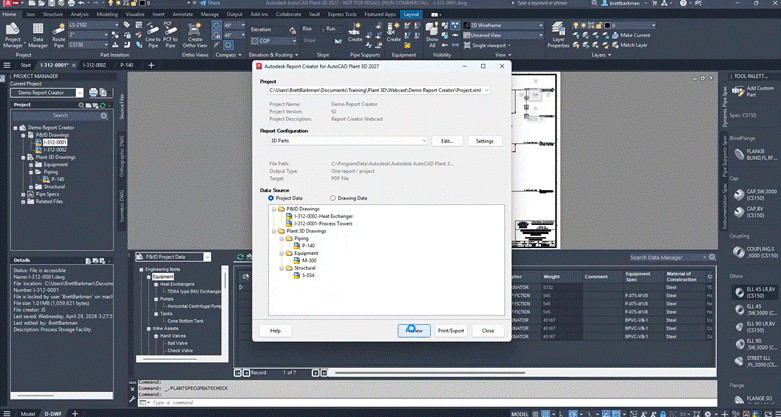
The Report Creator takes the same data and turns it into a finished deliverable: a formatted bill of materials, parts list, specification sheet, drawing list, etc. You configure the layout once, then run it in two clicks. Output can be exported to PDF or Excel among other file formats and shared with anyone — project managers, estimators, vendors, customers — no Plant 3D license required.
What the Out-of-Box Reports Get Right (and Where They Fall Short)
Plant 3D ships with a set of preconfigured reports: equipment list, valve list, instrument list, weight reports by line number and by object, center-of-gravity reports, a 3D parts report, and a drawing list. They're a reasonable starting point — but each has real limitations worth knowing before you write the tool off:
- The equipment list shows blank weight fields even when weights are filled in the Data Manager. The report is simply mapped to the wrong property.
- Weight reports have inconsistent decimal formatting and excessive whitespace — a modest dataset can balloon to 30+ pages.
- The 3D parts report counts bolt sets, not individual bolts. Estimators still have to do that math themselves.
- The drawing list's Revision column never populates — a known gap with no workaround in the off-the-shelf report.
- An equipment list that correctly maps to weight properties, pulling data that was always there.
- A 3D parts / BOM report with tighter formatting and a calculated bolt count — no post-processing needed.
- A drawing register that pulls revision data by mapping to an alternate property, solving the blank revision column issue.
- A line number report with an optional runtime filter, so users can run it for the full project or select specific lines.
These aren't reasons to abandon the tool. They're reasons to move past the defaults.
Custom Reports: What's Actually Possible
The bulk of the webcast demonstrates custom reports built to address these gaps directly. Starting from an existing report — or from scratch — you can control column layout, grouping, subtotals, decimal precision, and even inline calculations. A few examples from the session:
A Few Limitations to Know
Runtime filter parameters — where users choose specific values each time they run a report — don't persist when the report definition is saved and reopened. Autodesk has this in the development pipeline; the webcast covers a workaround in the meantime.
Data flow is also one-directional. Reports pull from Plant 3D — you can't push data back from a report into the drawing database. Anything that needs to appear in a report has to be entered in the project first.
Watch the Recording
The full webcast walks through each report live, including the build process behind the custom examples. If you're ready to get more out of the data already in your Plant 3D projects, it's worth an hour of your time.


Comments