




One thing is always certain in projects: Changes. In AutoCAD® Plant 3D, changes are normally easy, even with existing entities. The exception to this lies with Tags. Tags are unique within the software, and changing Tags on existing entities can be quite frustrating. Fortunately, Autodesk has provided a free tool called The Tag Rebuilder to address this issue.
A prime example for the use of this tool and the one we will use in this article is the result of making changes to Pipe Line Numbers to an existing project, as described in another Hagerman article entitled AutoCAD Plant 3D/P&ID: Pipe Line Numbers. In that article, the Pipe Line Numbers are redefined in the project so that they use the same format in the P&ID’s, Models, Orthos and Isometric drawings. However, if those changes are made in a project that already has existing drawings, there are additional steps that need to be taken in order to rebuild the tags within the project, and that is where The Tag Rebuilder comes into play, working in conjunction with the Data Manager.
I have already made all the changes to the Pipe Line Numbers per the aforementioned article to an existing out-of-the-box project that contains two P&ID’s and two Piping Models. Now I want to update my drawings so that they will have the correct format. Each existing Plant 3D Project will need to be updated in this same manner. However, there is no guarantee that this will work in every scenario since I cannot test every project created that has been customized. Results may vary based on the complexity of the customization as well as the amount of data that has been applied. For instance, if I were to perform these steps on the Sample Project that comes with Plant 3D, I would get mixed results because not all the Services have been defined in the Model, and when validating the Sample Project, there are a lot of errors with Services and Line Numbers between the P&ID’s and the Model. In the event these steps do not work, the only solution is to manually fix the Line Number Tags one at a time.
Downloading the Tag Builder
Autodesk provides a great tool for updating the Plant 3D Tags, and it is supposed to work on both the Plant 3D side as well as the P&ID side. I have found that it works every time on the Plant side, and so far, it is the only method I have found that will work on the Plant 3D side. However, I have yet to have a successful result on the P&ID side in any version or any project that I have personally tried to use it on. Fortunately, I have found another method on the P&ID side that works.
Here is a link to the Autodesk Technical Support instructions and download. Once you have downloaded it, I will walk you through the instructions with screenshots for the Plant 3D update. Here is the link to the document: https://www.autodesk.com/support/technical/article/caas/sfdcarticles/sfdcarticles/How-to-update-the-tags-after-changing-the-tag-format.html
Updating the Plant3D Line Number Tags
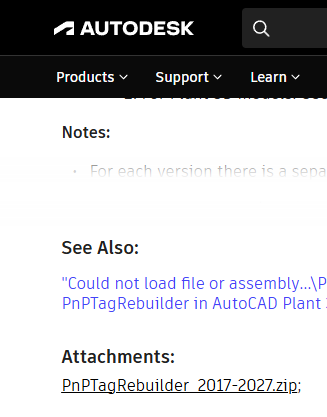
For the Plant Side, I will walk you through the aforementioned document from Autodesk. After you click on the link above, download the Zip file PnPTagRebuilder 2017-2027.zip to your hard drive. It should be in your Downloads folder, but I suggest moving it to a location where you can find it more easily. For me, that is my S Drive on my network. The file name will most likely change in future versions, but so far that has been just changing to the latest version (ie: PnPTagRebuilder 2017-2024.zip to PnPTagRebuilder 2017-2027.zip).
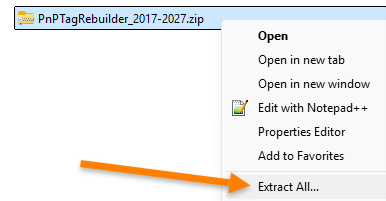
Right-click on the zip file and select Extract All.
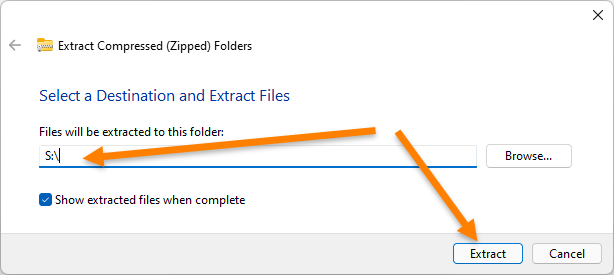
I want mine to have a shorter path, so I changed the location to the root of my S Drive and then selected Extract.
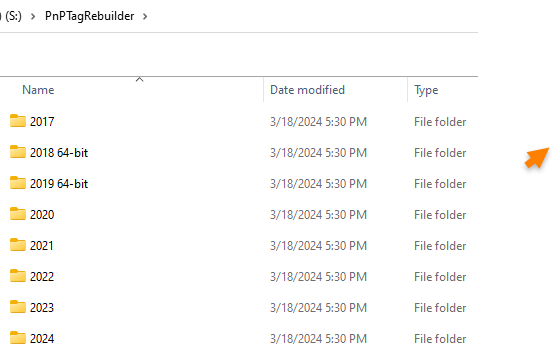
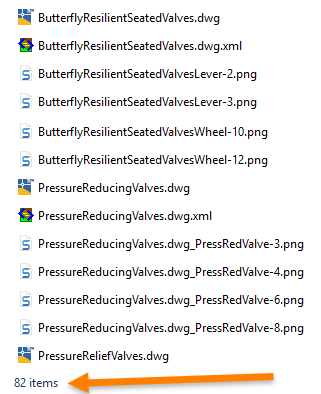
Once extracted, you will see several different versions. You must use the correct version in Plant 3D.
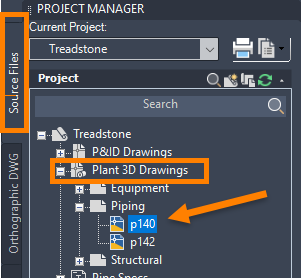
On the Source Files tab of the Project Manager, Open any Plant 3D Drawing. You must be in a Plant 3D Model with Piping to proceed.
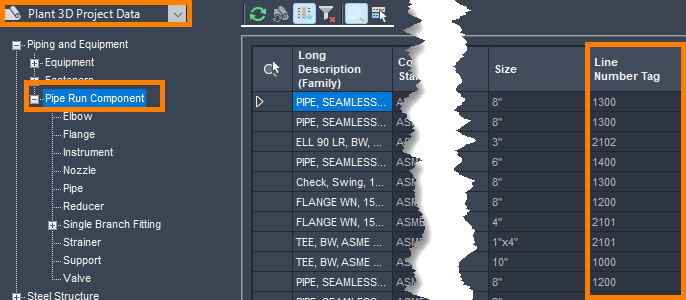
First is an image showing the out-of-the-box Data Manager Pipe Run Component Line Number Tags.
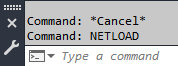
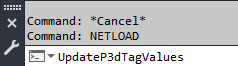
At the Command Prompt, enter NETLOAD.
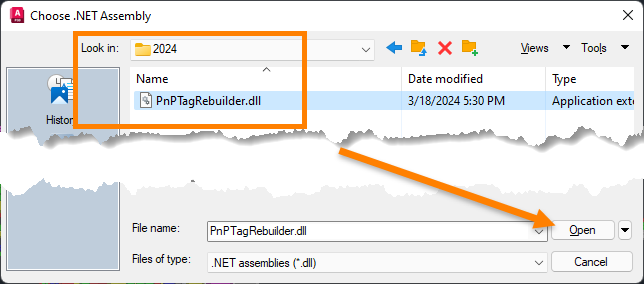
In the Choose .NET Assembly dialog box, locate the correct version of the PnPTagRebuilder.dll that you extracted above and open it. In my case, I am working in AutoCAD Plant 3D 2024, so I need the 2024 version of the routine.
In the Utility Warning dialog box, select OK.
At the command prompt, enter UpdateP3dTagValues.
You can do them all if you like by entering 0, but the more you do and the larger the project, the longer it will take. All you need for the sake of this article is Option 4 for Line Number.
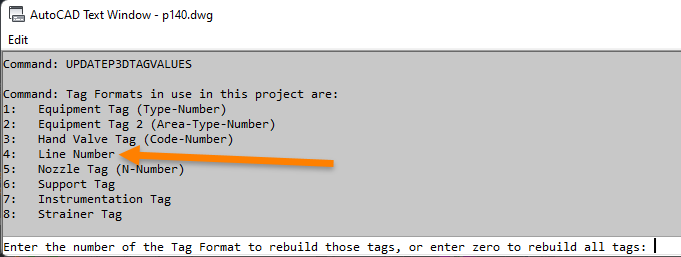
Enter 4 for the Tag Format to rebuild and press ENTER. Once it has been completed, you will receive a message of how many tags were processed, letting you know it was successful.

You may need to select the Refresh button in the Data Manager, but you can see the results in the Data Manager under Pipe Run Component. This image shows a variety of components that have been updated on multiple drawings.
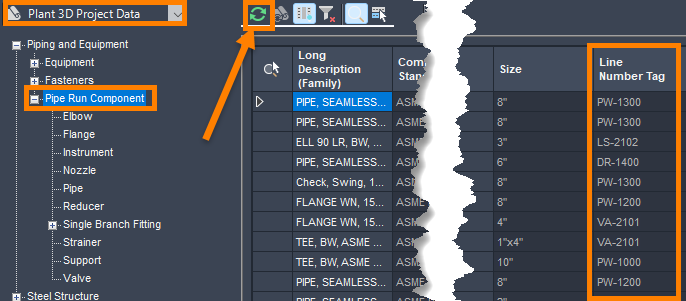
The Plant 3D Drawings should be updated and ready to go. Save and Exit your drawings and move on to the P&ID’s.
Updating the P&ID Line Number Tags
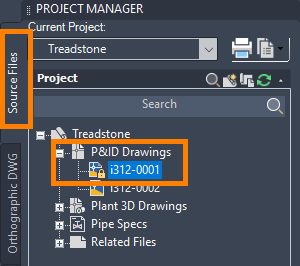
On the Source Files tab of the Project Manager, Open any P&ID Drawing. You must be in a P&ID Drawing to proceed.
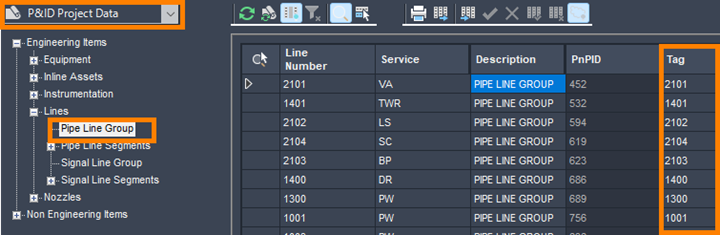
First is an image showing the out-of-the-box Data Manager Pipe Line Group Tags.
As stated earlier, I have never gotten successful results from the Autodesk PnPTagRebuilder.dll with the P&ID’s. However, I still suggest you give it a go before moving on with the instructions below. Who knows? You may get different results than I have, or maybe the routine will be improved at some point and actually work on the Line Number Tags. It does appear to work on everything else. The only difference in the above instructions is the command for P&ID’s is UpdatePIDTagValues, and the option for Line Numbers is 5. If you try this and do not receive a message regarding the number of tags processed, then move on to the steps below.
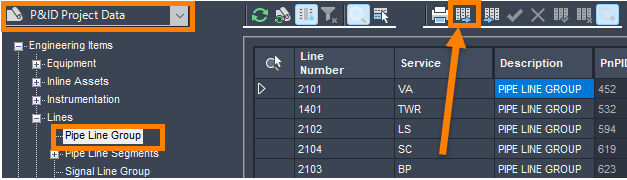
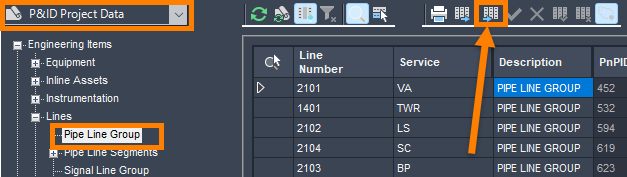
In the Data Manager, set it to P&ID Project Data and select Pipe Line Group, and then select the Export Button.
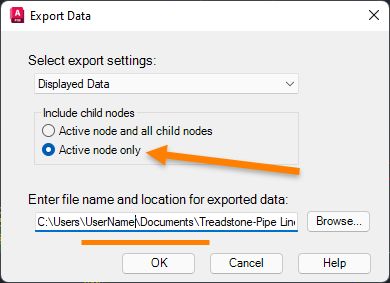
In the Export Data dialog box, set it to Active node only. Enter the file name and location that you would like to save the Excel file to, then select OK. I am taking the default into My Documents.
Using Windows File Explorer, locate the Excel file you just created, right-click on it and Copy, then right-click and Paste so that you have two copies of the file.

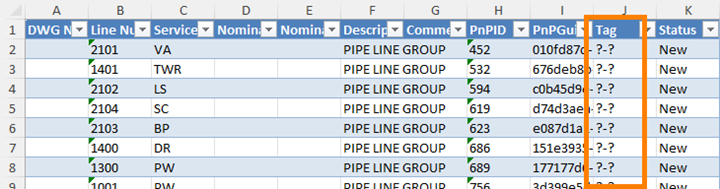
Since I am doing this exactly like this article, the Pipe Line Group Tag Format was set up with two Sub-Parts, which equals ?-?. Modify one line in the Tag column to ?-? and then use Copy and Paste to modify every line in the Tag column to ?-?. Then save and exit Excel.
Back in the Data Manager in Plant 3D, still set to P&ID Project Data and Pipe Line Group, select the Import Button.
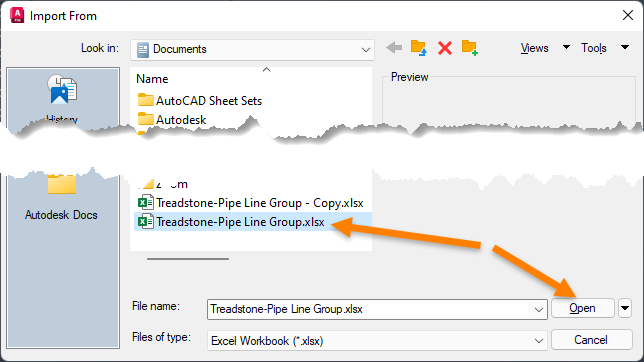
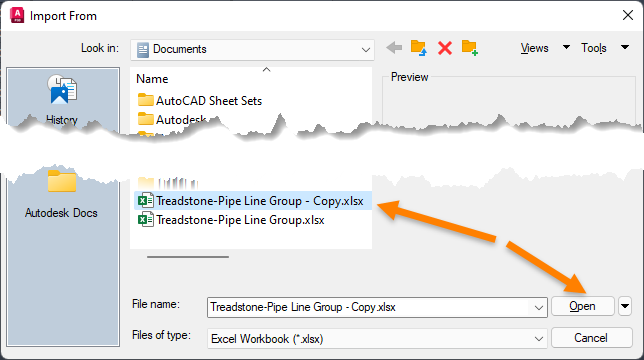
In the Import From dialog box, select the Excel file that you modified. Now select Open.
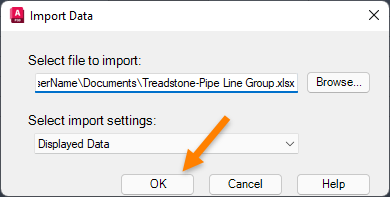
In the Import Data dialog box, select OK.
In the Data Manager, the entire Tag column is highlighted in yellow. Select the Accept All button.
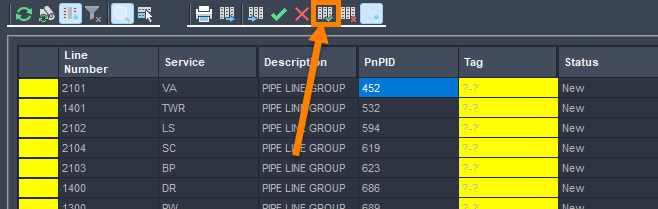
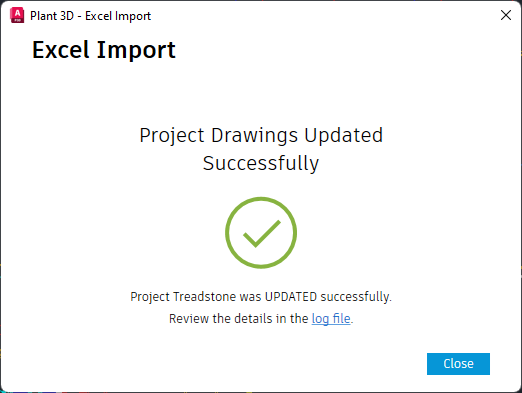
In the Plant 3D – Excel Import dialog box, Select Update.
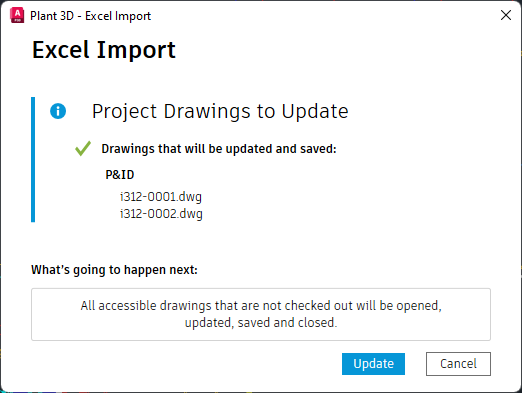
Once Successful, select Close.
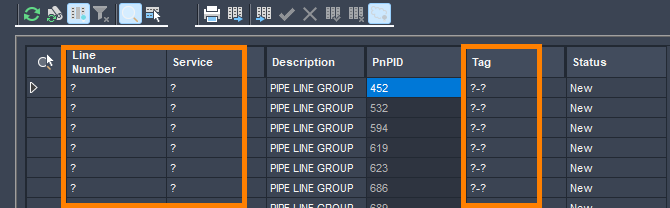
Note that the Tag has been changed as well as the Line Number and Service. If the Tag does not equal ?-? then something went wrong, and you will need to Import the Excel file again. Some versions require that you open every P&ID drawing in the Project for this to work, but it will not work if the Tag is not ?-?.
Now follow the same procedure to Import the Excel file that you Copied – but Do Not Jump ahead without reading the next steps.
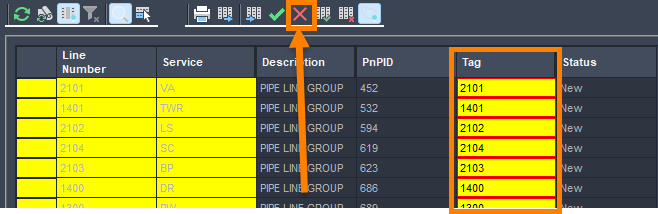
This time in the Data Manager, Select every entry in the Tag column and Reject just the Tag column. You can use your Shift key to select them all from top to bottom.
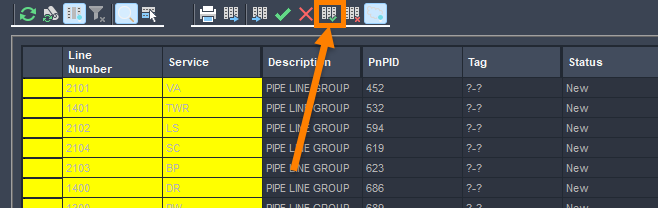
Now with Line Number and Service still highlighted in Yellow, but not Tag, Select Accept All. Then, in the Plant 3D – Excel Import dialog box, select Update followed by Close once it is successful.
The P&ID Pipe Line Group Tags have now been updated to the new format in the entire project.
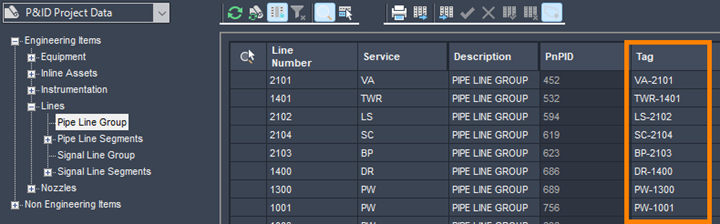
The P&ID’s are now updated.
Next Steps:
Want to get more out of AutoCAD Plant 3D and P&ID? Our hands-on training goes beyond the basics to help you work more efficiently and avoid common pitfalls. Browse upcoming classes or contact us to find the right training for your team.



Comments